

Community Days shows your event's sessions, speakers and schedule straight from Sessionize. To do that it needs a JSON API ID from your Sessionize event. The other kinds Sessionize offers, such as the embed it suggests first, won't work.
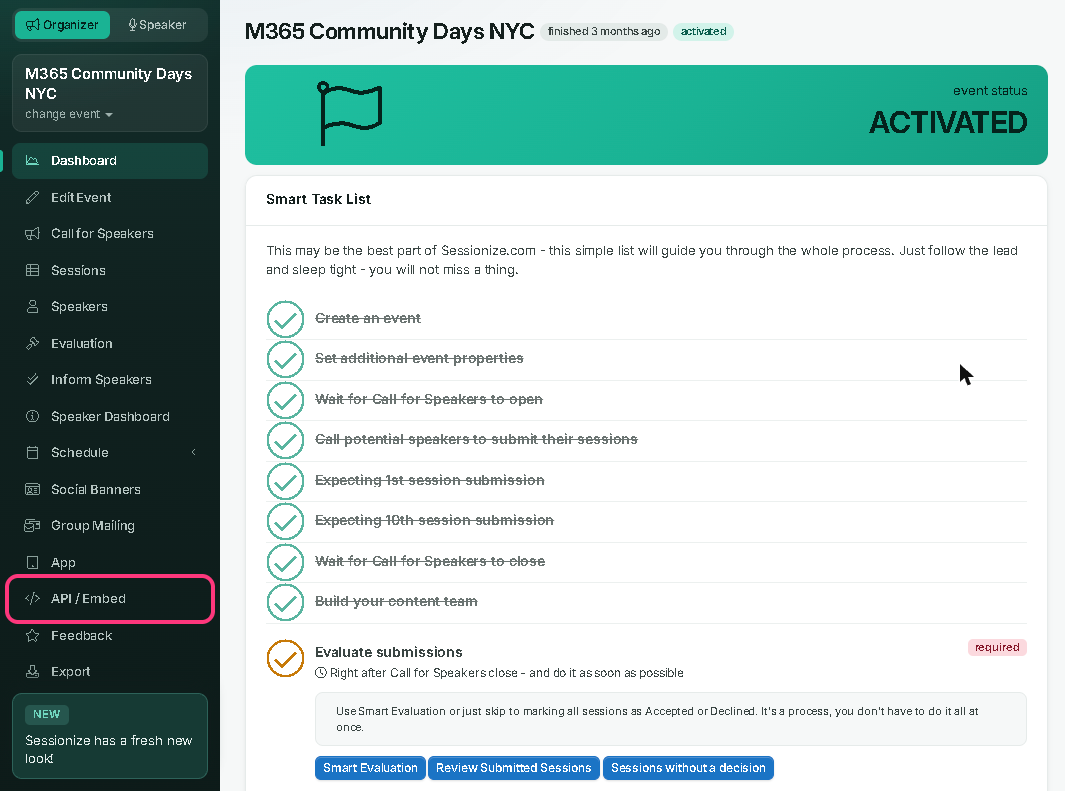
1. Open API / Embed
In Sessionize, open your event and choose API / Embed in the menu on the left.
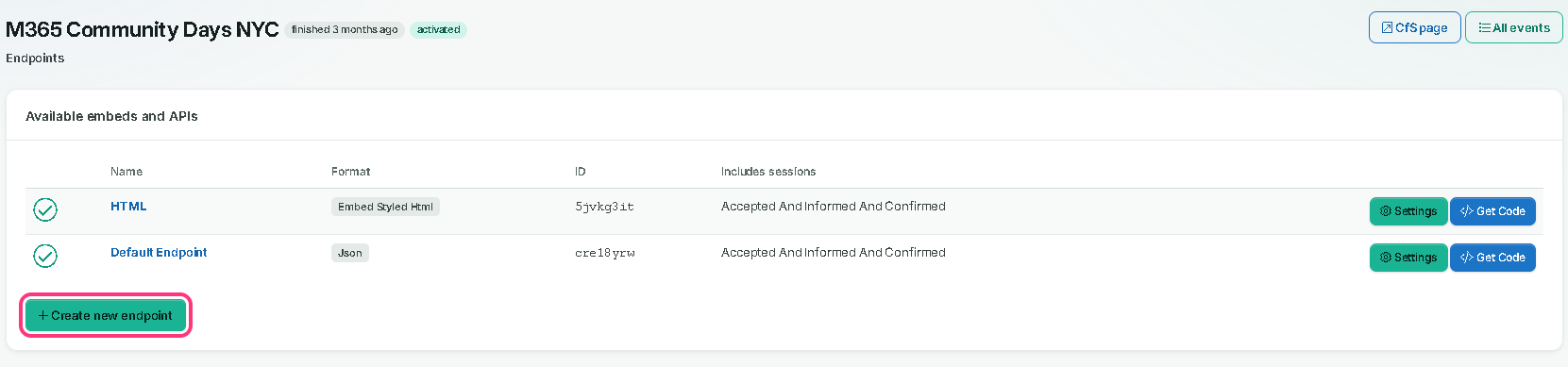
2. Create a new endpoint
Choose Create new endpoint. If the list already has one whose Format is Json, you can skip to step 5 and set that one up.
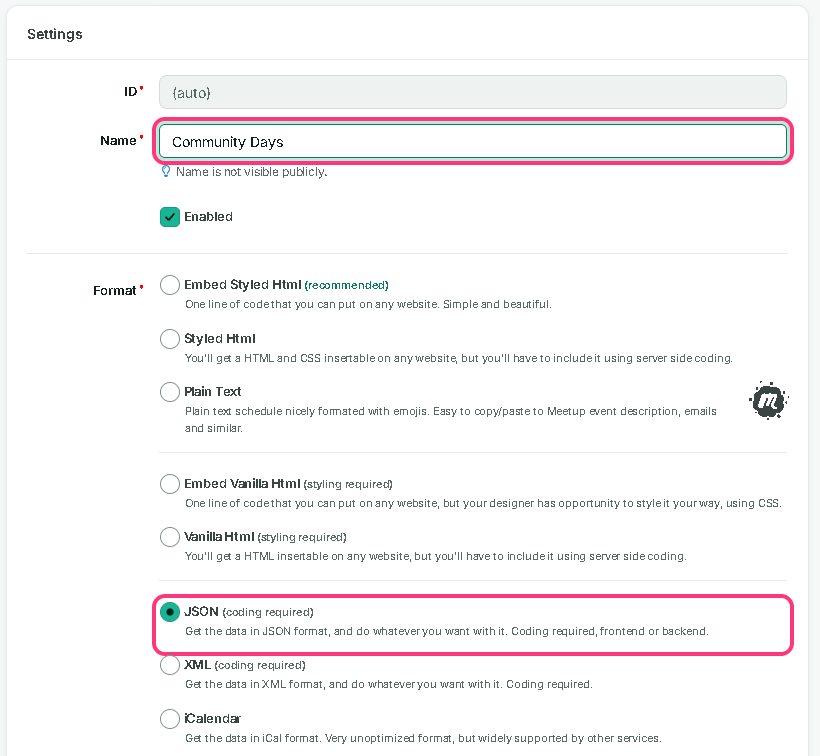
3. Name it and choose JSON
Give it a name, such as Community Days (only you see it). Under Format, choose JSON (coding required).
Sessionize picks Embed Styled Html first. That one is for pasting onto a website, and Community Days can't read it: your event page would show no sessions, speakers or schedule, and your speakers would get no Speakerboard credit for the event.
4. Create the endpoint
Choose Create endpoint at the top right.

5. Configure it
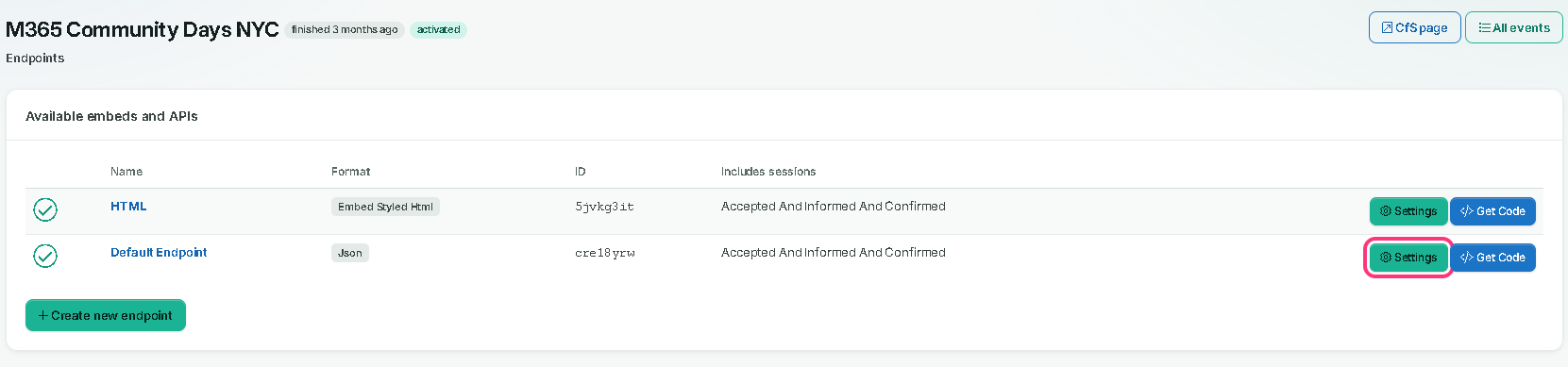
Back in the list, choose Settings on your Json endpoint. These settings decide what your event page and your speakers' Speakerboard profiles show.
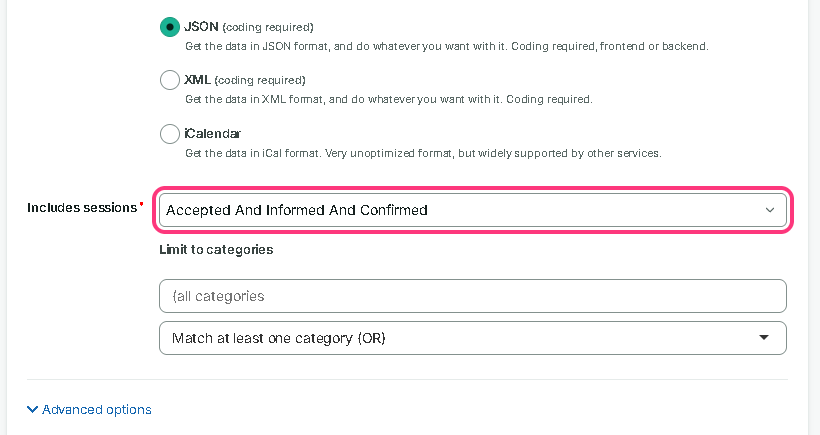
Includes sessions: Accepted And Informed And Confirmed (recommended)
Your event page then shows only speakers who have acknowledged their acceptance. With a wider choice, it might show everyone who submitted. The same sessions count towards your speakers' places on the Speakerboard.
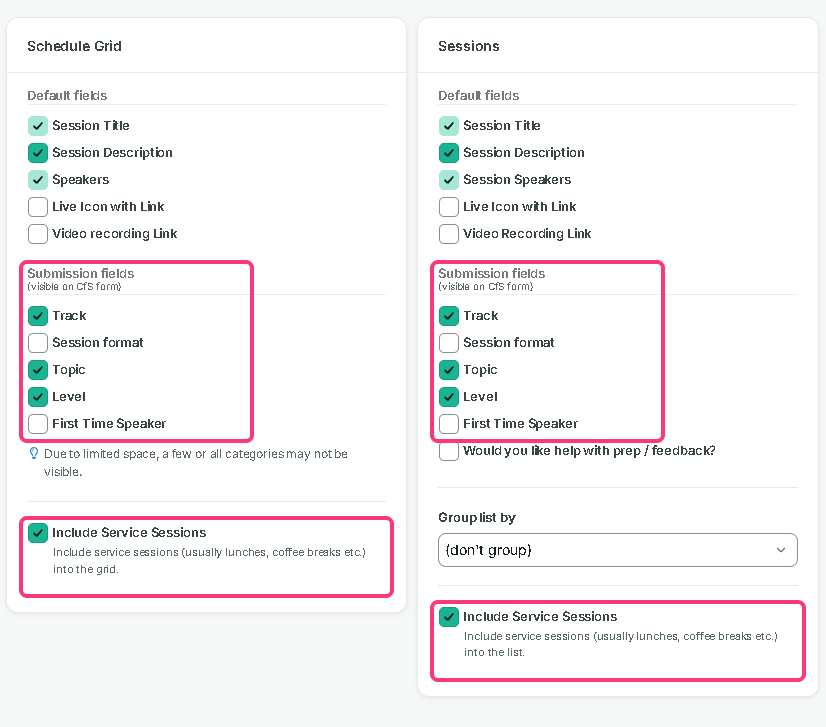
Submission fields: optional; tick the ones visitors should filter by
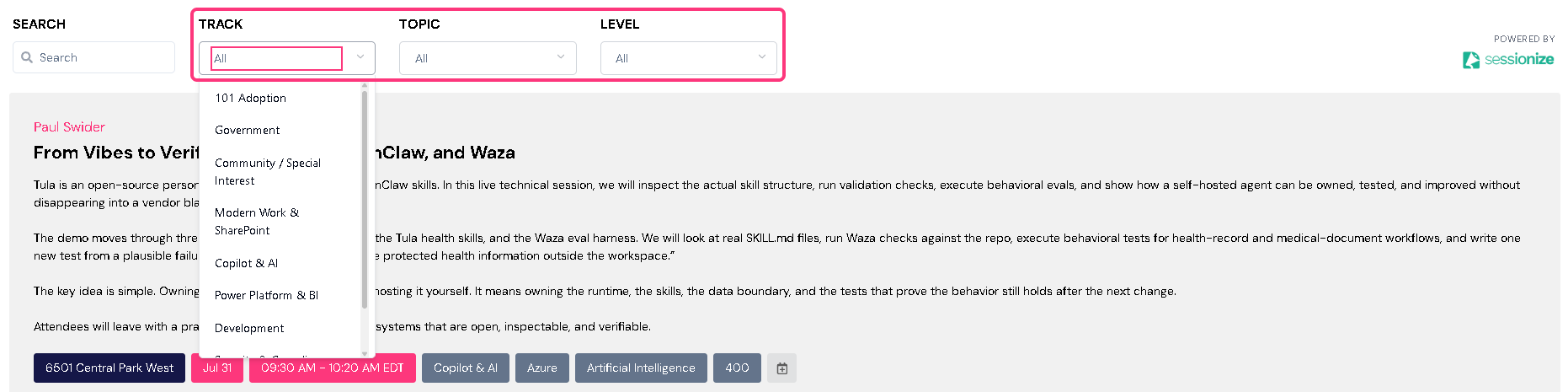
Tick them in both the Schedule Grid and Sessions boxes, for example Track, Topic and Level. Each one you tick becomes a filter on your event page's Sessions and Schedule tabs, and a tag on each session.
On your event page, they look like this:
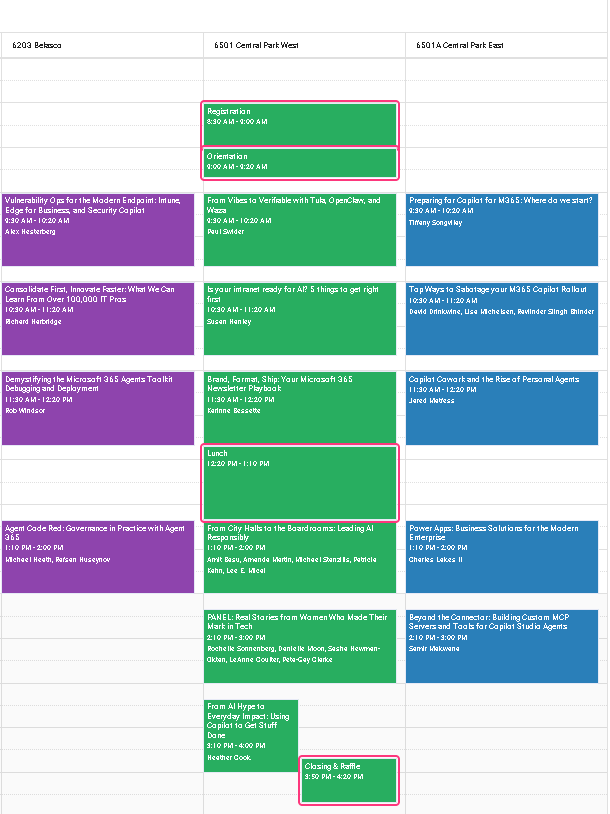
Include Service Sessions: ticked (recommended)
Tick it in both the Schedule Grid and Sessions boxes (shown above). Registration, breakfast, lunch and closing then show on your event's schedule alongside the talks.
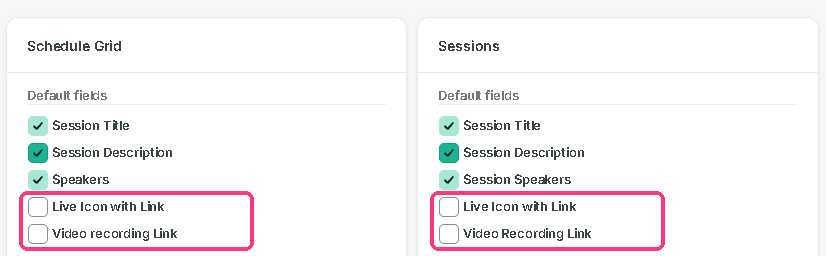
Live Icon with Link and Video Recording Link: tick them for virtual events or recorded content
Tick both in the Schedule Grid and Sessions boxes. A session's live link and recording link then come through from Sessionize, and show on that session on your event page as Live Link and Recording.
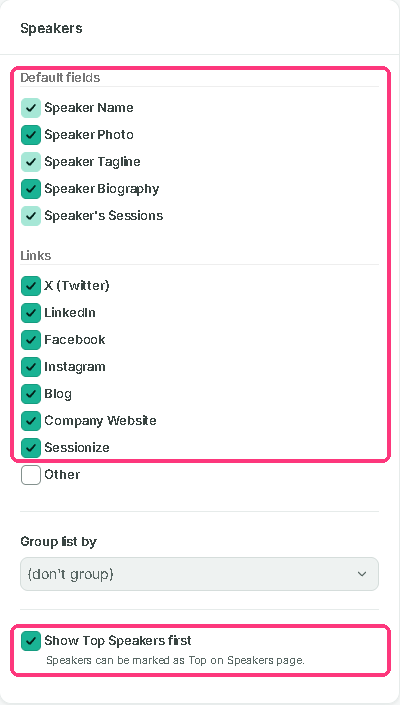
Speakers: tick all the default fields and the links (recommended)
In the Speakers box, keep every Default field ticked, and tick X (Twitter), LinkedIn, Facebook, Instagram, Blog, Company Website and Sessionize under Links. Your event page then shows each speaker's photo, tagline, biography and links.
The same details carry over to each speaker's profile on the Speakerboard: their photo, tagline and biography, and their X, LinkedIn, Blog and Company Website links.
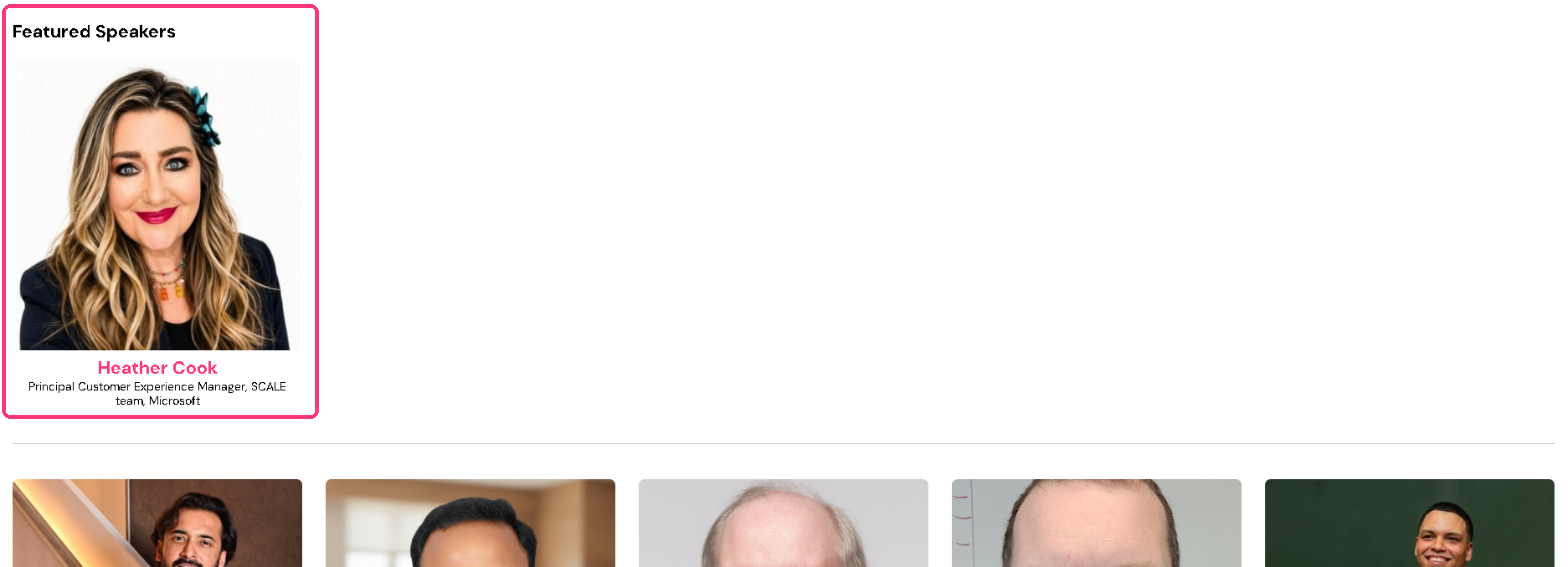
Show Top Speakers first: ticked (recommended)
Mark your top speakers on Sessionize's Speakers page. Your event page then shows them under Featured Speakers, above everyone else, and their sessions at your event get a Top Speaker tag on their Speakerboard profile.
Also: leave these as they are
- Enabled: keep it ticked; it's what switches the endpoint on.
- Limit to categories: leave it empty so every session comes through.
- Use UTC timezone for schedule: either way works; Community Days reads the session times either way.
Then choose Save changes at the top right.

6. Copy its ID
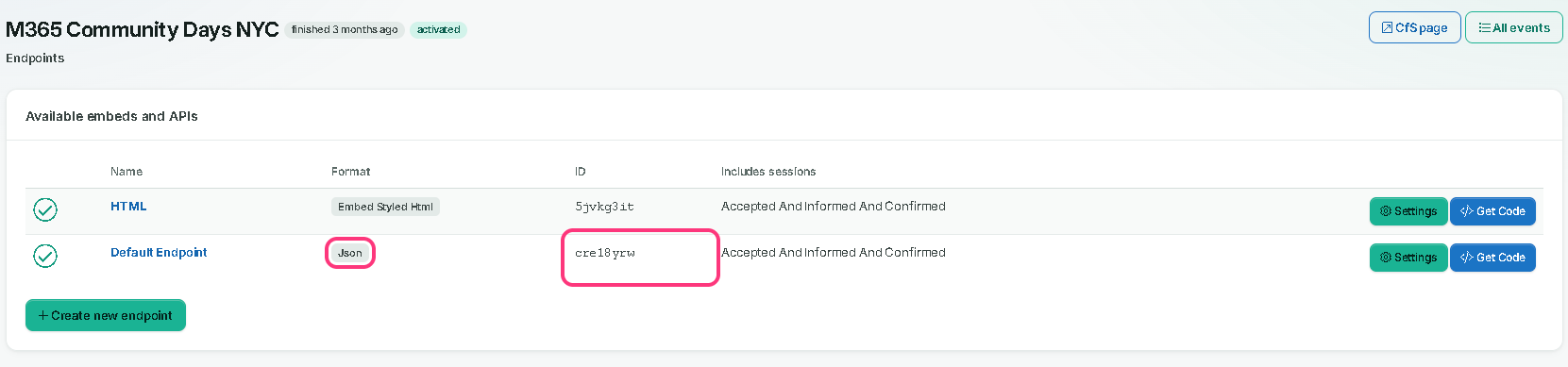
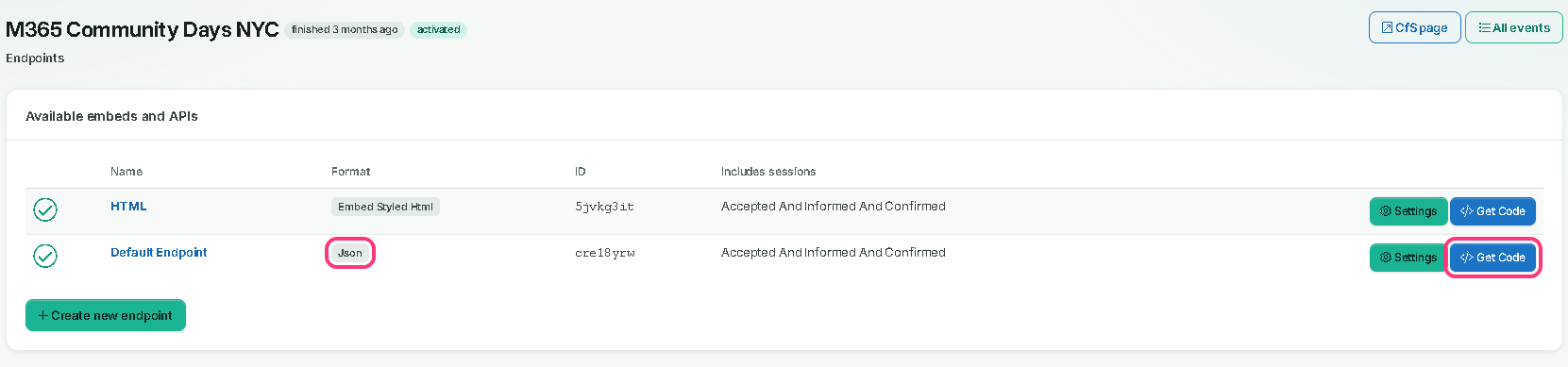
In the list, find the endpoint whose Format says Json and copy its ID: eight letters and numbers, such as
cre18yrw.Make sure it's the Json one. An ID from a row whose Format says anything else, such as Embed Styled Html, won't work.
7. Paste it into your Community Days event
On Community Days, edit your event, open the Call to Action step, paste the ID into Sessionize Key and save.

Check it in Sessionize
Back on API / Embed, choose Get Code on the row whose Format says Json.
Next to All Data, choose show in preview. The Preview shows your event as data, starting with "sessions", with your sessions listed below. That's what Community Days reads.
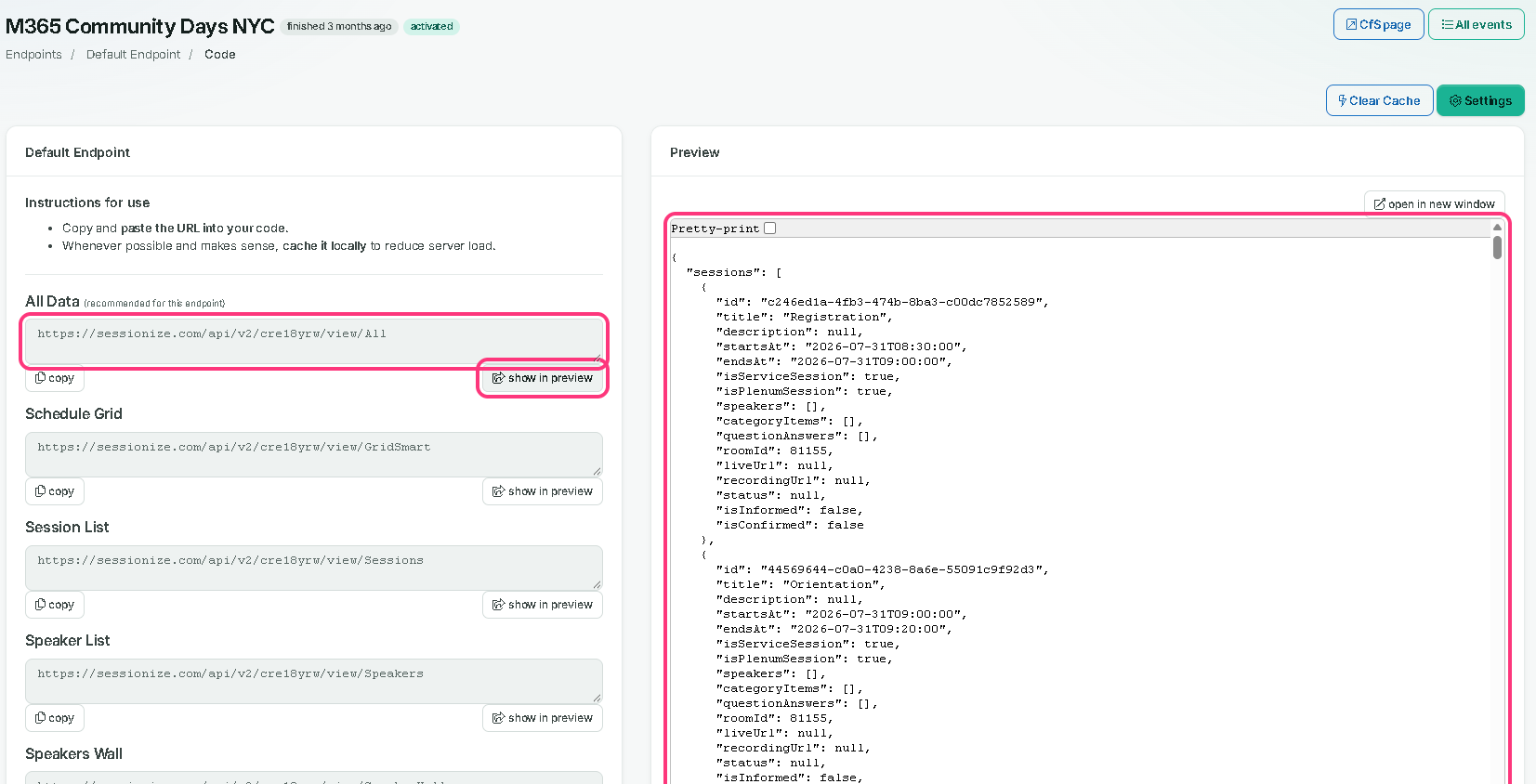
What Community Days reads from Sessionize
For your information only: there's nothing to set up here.
https://sessionize.com/api/v2/{your ID}/view/AllYour event page’s Sessions, Speakers and Schedule tabs, read when someone opens the page.
https://sessionize.com/api/v2/{your ID}/view/Sessions and /view/SpeakersOnce a day, to credit your speakers and their sessions on the Speakerboard.
Community Days can't change anything in your Sessionize event. You control what's shared, with the settings in step 5.
A change in Sessionize shows on your event page within a few minutes, and on the Speakerboard within a day. If one doesn't show, choose Clear Cache on the Get Code page in Sessionize.
Still stuck? See the Sessionize questions in our FAQs or contact us.