

Community Days shows your event's sessions, speakers and schedule straight from run.events. All it needs is your event's slug, the short name run.events gives your event, such as m365-nyc.
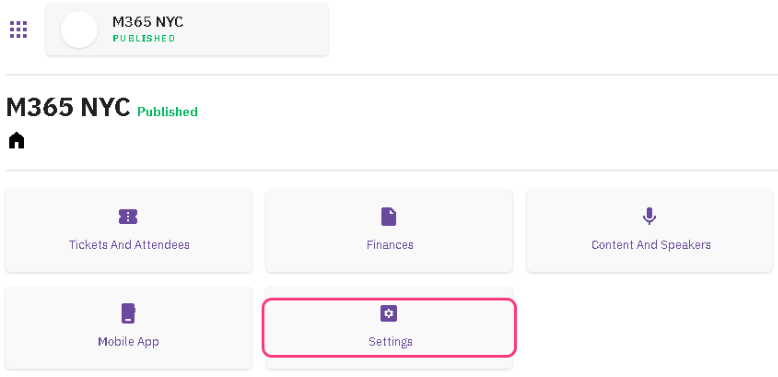
1. Open your event’s Settings
In run.events, open your event and choose Settings.
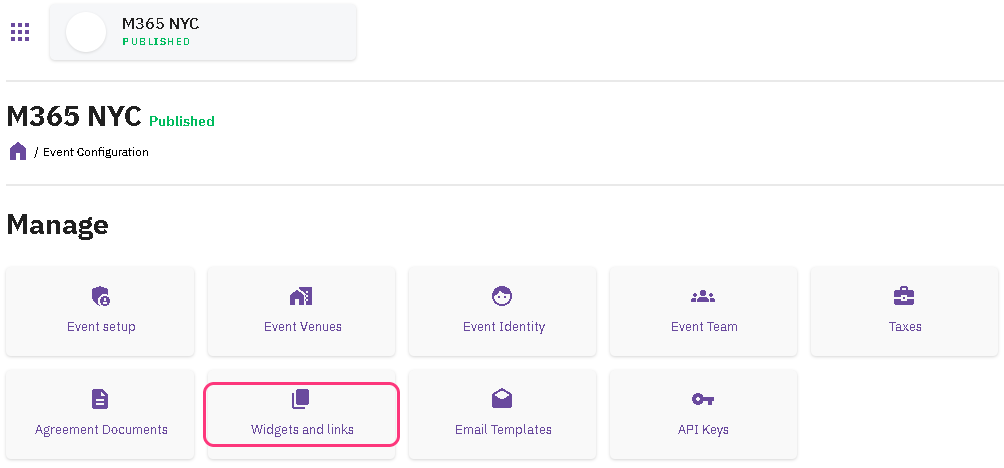
2. Open Widgets and links
Under Manage, choose Widgets and links.
3. Copy the slug
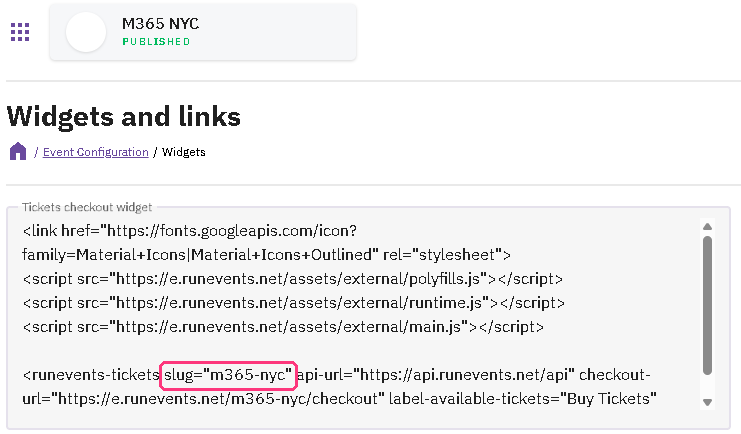
In the Tickets checkout widget box, find
slug="…"and copy the text between the quotes, such asm365-nyc. That's your event's slug: the short name run.events gives it. Every widget on the page shows the same one.Copy only the slug, not the quotes or the code around it.
4. Paste it into your Community Days event
On Community Days, edit your event, open the Call to Action step, paste the slug into Run.Events Key and save. Community Days checks the slug with run.events as you type it, and says so if run.events doesn't know it.
An event takes its sessions from run.events or from Sessionize, not both, so Run.Events Key stays locked while Sessionize Key has anything in it.

What Community Days reads from run.events
For your information only: there's nothing to set up here.
- Your event's sessions, agenda and speakers, for its Sessions, Speakers and Schedule tabs, read when someone opens the page and kept for a few minutes.
- Its sponsors, in their tiers, with what each says about itself and the links it shares, for the Sponsors tab and the sponsors slider on the Home tab, read again every few minutes.
- Its sessions and speakers once a day, to credit your speakers and their sessions on the Speakerboard.
Community Days reads these with its own run.events access, so the slug is all you give it. It only reads: it doesn't change anything in your run.events event.
Still stuck? See the run.events question in our FAQs or contact us.